Update by uploading the new zip over the installed plugin, then check your settings and place a test order. Back up first, so you can roll back if something looks wrong.
Before you update
Back up your site files and database.
Note your current version on the Plugins page.
Read Plugin release notes for the version you are moving to, and any action it may ask for.
Update steps
Download the latest zip from the GitHub releases page.
In WordPress, go to Plugins → Add New Plugin → Upload Plugin and choose the zip.
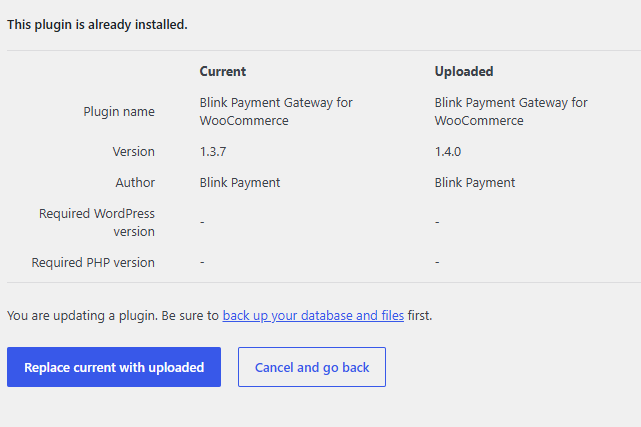
Click Install Now. WordPress will tell you the plugin is already installed; click Replace current with uploaded.
Go to WooCommerce → Settings → Payments → Blink. Your keys, test mode setting and payment methods are kept when you update.
Place a test order following Test before going live.
Updating to a new release
Every release's changes are listed in the Plugin release notes. Most updates need no action beyond the steps above. If a release needs you to do something, the release notes say so.
Read the release notes for the version you are moving to before you update.
After updating, open WooCommerce → Settings → Payments → Blink and check everything is as you left it.
New or changed settings are described in the settings reference on the Configure page.
If something goes wrong
Go to Plugins and deactivate Blink Payment Gateway for WooCommerce.
Delete it, then install the previous version from GitHub releases.
Re-check your settings, then contact integrationsupport@blinkpayment.co.uk with the version numbers involved.
Every release is tagged on GitHub, so you can reinstall an earlier version if you need to.