Open WooCommerce → Settings → Payments, find Blink and click Finish set up. Add your keys and save, then choose your payment methods and save again. The payment methods list only appears once valid keys are saved, because it comes from your Blink account. 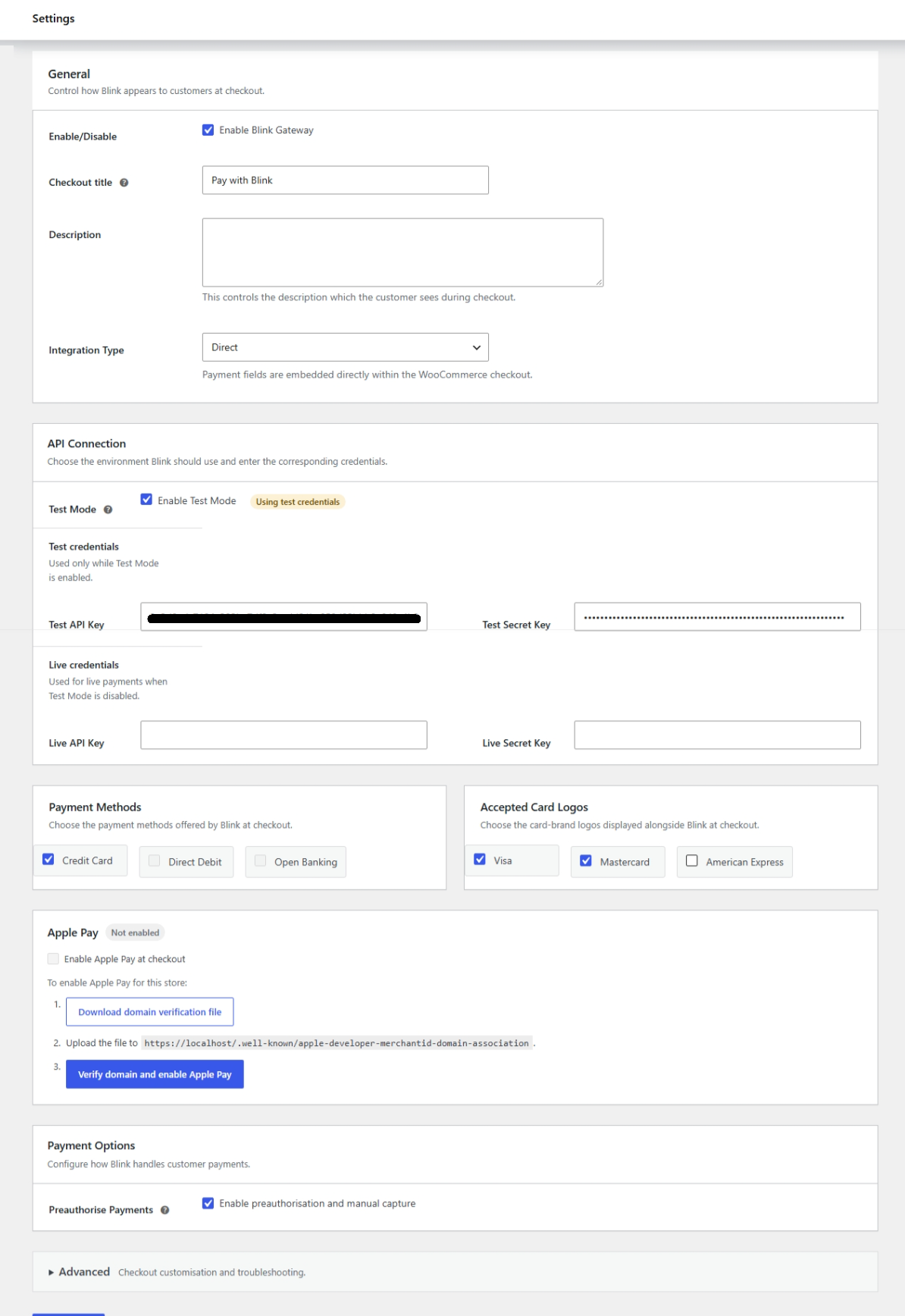
Get your keys from the Blink Portal. If you don't have a live account yet, sign up for a sandbox account.
Settings reference
Section | Setting | What it does |
|---|---|---|
General | Enable Blink Gateway | Turns Blink on or off at checkout. Untick it to hide Blink without uninstalling. |
General | Checkout title | The name customers see for this payment option. The default is "Blink Payment"; change it if you want different wording. |
General | Description | The text customers see under the title. |
General | Integration Type | Direct puts the payment fields inside your WooCommerce checkout. Hosted sends the customer to Blink to pay, and is a good fallback if your theme or plugins interfere with Direct. |
API Connection | Enable Test Mode | Uses your test credentials. Your live credentials are kept and used again when you turn Test Mode off. |
API Connection | Test API Key and Test Secret Key | Keys from your sandbox account. Only used while Test Mode is on. |
API Connection | Live API Key and Live Secret Key | Keys from the Blink Portal. Used when Test Mode is off. Keep the secret key private. |
Payment Methods | One tickbox per method | Choose which methods Blink offers. Only methods enabled on your Blink account are listed. See Payment methods. |
Accepted Card Logos | Visa, Mastercard, American Express | Shows the logos you tick next to Blink at checkout. All are off by default. |
Apple Pay | Domain verification and Apple Pay enabled | Registers your domain and turns Apple Pay on. See Set up Apple Pay. |
Payment Options | Preauthorise Payments | Reserves the amount at checkout and lets you capture it later. Card only: other methods are switched off while this is on. See Pre-authorise and capture. |
Advanced | Custom Style | Extra CSS for the payment form. Enter the rules only; do not include |
Advanced | Debug mode | Writes diagnostic logs to a file under |
Going live
Enter your Live API Key and Live Secret Key.
Untick Enable Test Mode.
Save changes.
Place one real low-value order and check it in the Blink Portal and in WooCommerce.
Never put live keys in test fields, or test keys in live fields. The payment will fail or go to the wrong account.
For developers
Two WordPress actions let you add your own scripts and styles to the Blink payment form: wc_blink_custom_script and wc_blink_custom_style.
add_action('wc_blink_custom_script', function () {
    wp_enqueue_script('my-handle');
});
add_action('wc_blink_custom_style', function () {
    wp_enqueue_style('my-handle');
});
With Direct integration, the plugin loads Blink's hosted fields script to turn card details into a payment token on Blink's servers.